AZ - 700 Lab 2
I’m Amir Rouhanipoor, an IT Consultant specializing in Azure and cloud solutions. I help organizations streamline their IT and drive growth through secure, efficient cloud technologies.
M02-Unit 3 Create and configure a virtual network gateway
Scenario
You will configure a VPN gateway to securely connect CoreServicesVnet (East US) and ManufacturingVnet (North Europe) using VNet-to-VNet VPN.
Task 1: Create CoreServicesVnet and ManufacturingVnet
Task 2: Create CoreServicesVM
Task 3: Create ManufacturingVM
Task 4: Connect to the VMs using RDP
Task 5: Test the connection between the VMs
Task 6: Create CoreServicesVnet Gateway
Task 7: Create ManufacturingVnet Gateway
Task 8: Connect CoreServicesVnet to ManufacturingVnet
Task 9: Connect ManufacturingVnet to CoreServicesVnet
Task 10: Verify that the connections connect
Task 11: Test the connection between the VMs
For more info click on the image below:

Task 1: Create CoreServicesVnet and ManufacturingVnet
Open Cloud Shell in the Azure portal and select PowerShell.
Upload:
azuredeploy.jsonandazuredeploy.parameters.jsonRun:
$RGName = "ContosoResourceGroup"
New-AzResourceGroup -Name $RGName -Location "eastus"
New-AzResourceGroupDeployment -ResourceGroupName $RGName -TemplateFile azuredeploy.json -TemplateParameterFile azuredeploy.parameters.json
Task 2 & 3: Create CoreServicesVM and ManufacturingVM
Upload:
CoreServicesVMazuredeploy.jsonandManufacturingVMazuredeploy.jsonRun (for each):
New-AzResourceGroupDeployment -ResourceGroupName $RGName -TemplateFile <template>.json -TemplateParameterFile <parameters>.json
e.g. for manufacturingvm:
$RGName = "ContosoResourceGroup"
New-AzResourceGroupDeployment -ResourceGroupName $RGName -TemplateFile ManufacturingVMazuredeploy.json -TemplateParameterFile ManufacturingVMazuredeploy.parameters.json
Task 4: Connect to VMs Using RDP
In Azure Portal, go to Virtual Machines.
Select each VM, click Connect > RDP, download and open the file.
Log in with:
Username: TestUser
Password: (used during deployment)
Accept privacy settings and select Yes on network prompt.
On CoreServicesVM, run:
ipconfig- Note the IPv4 address.
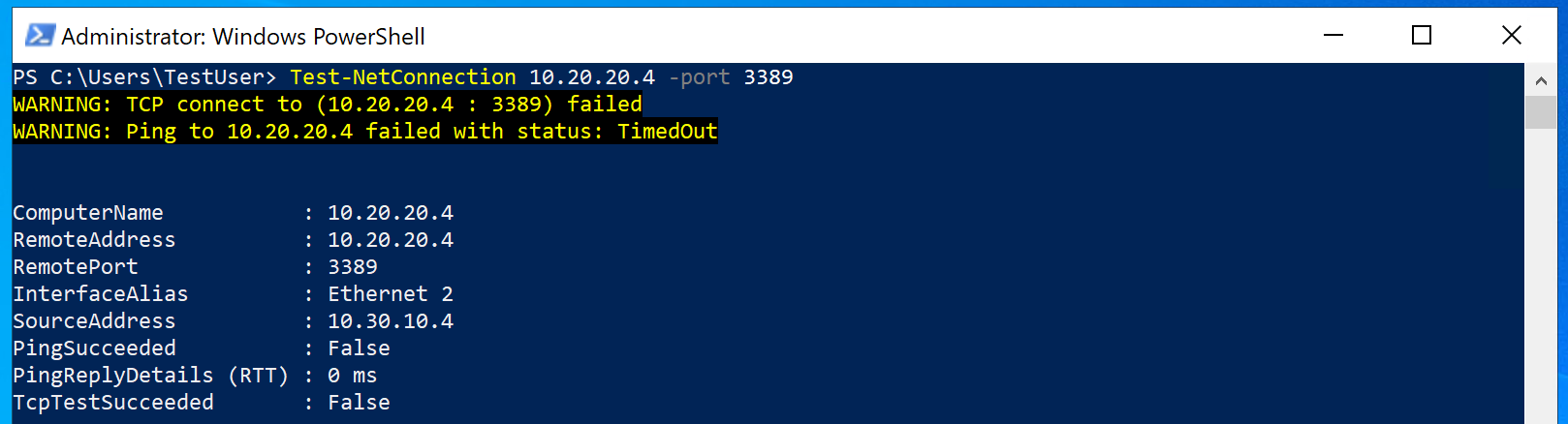
Task 5: Test Initial Connection (Should Fail)
On ManufacturingVM, run:
Test-NetConnection <CoreServicesVM_IP> -Port 3389- Connection should fail.
Task 6: Create CoreServicesVnet Gateway
Go to Virtual Network Gateways > + Create.
Use the following settings:
Name: CoreServicesVnetGateway
Region: East US
Gateway type: VPN
SKU: VpnGw1
Generation: 1
Virtual Network: CoreServicesVnet
Subnet: GatewaySubnet (10.20.0.0/27)
Public IP: Create new → Name: CoreServicesVnetGateway-ip (disable active-active mode)
Task 7: Create ManufacturingVnet Gateway
In ManufacturingVnet, go to Subnets > + Subnet.
Purpose: GatewaySubnet
Size: /27

Then create the gateway:
Name: ManufacturingVnetGateway
Region: North Europe (to be able to select manufacturing vnet)
Same settings as above
Public IP name: ManufacturingVnetGateway-ip (disable active-active)

Task 8: Connect CoreServicesVnet to ManufacturingVnet

Go to CoreServicesVnetGateway > Connections > + Add.
Use these settings:
Name: CoreServicesGW-to-ManufacturingGW
Connection type: VNet-to-VNet
First vnet Gateway: CoreServicesVnetGateway
Second Vnet Gateway: ManufacturingVnetGateway
Shared key: abc123
Protocol: IKEv2
Region: East US
Task 9: Connect ManufacturingVnet to CoreServicesVnet
Go to ManufacturingVnetGateway > Connections > + Add.
Use:
Name: ManufacturingGW-to-CoreServicesGW
Connection type: VNet-to-VNet
First Vnet Gateway: ManufacturingVnetGateway
Second Gateway: CoreServicesVnetGateway
Shared key: abc123
Region: North Europe


Task 10: Verify VPN Connection
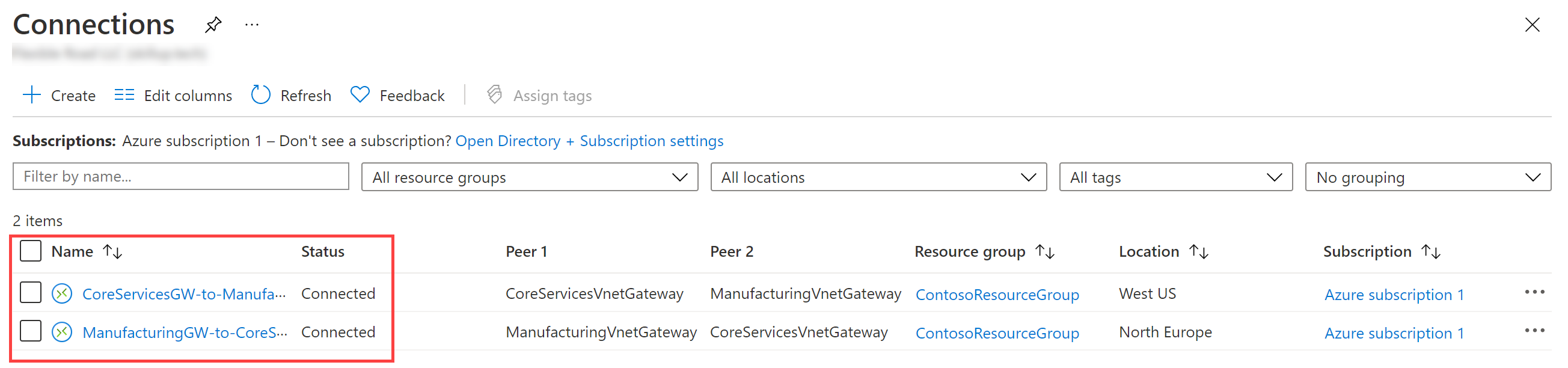
Go to Connections in Azure portal.
Refresh until both connections show Connected.
Task 11: Test Final Connection
On ManufacturingVM, run:
Test-NetConnection <CoreServicesVM_IP> -Port 3389- Connection should succeed.

Clean Up Resources
To delete the resources, run:
Remove-AzResourceGroup -Name 'ContosoResourceGroup' -Force -AsJob
Extend Your Learning
Try these prompts in Microsoft Copilot:
- What are the types of Azure VPN gateways? Azure supports three main types of VPN gateway configurations:
| Type | Purpose |
| Site-to-Site (S2S) | Connects on-premises network to an Azure VNet using IPsec/IKE tunnel. |
| Point-to-Site (P2S) | Allows individual clients (e.g., remote workers) to connect to Azure. |
| VNet-to-VNet | Connects two or more Azure VNets together securely. |
You can mix S2S, P2S, and VNet-to-VNet on the same gateway (with compatible SKUs).
- How do VPN gateway SKUs differ? Azure VPN Gateway SKUs differ by performance, features, and pricing. Key differences include:
| SKU | Max Throughput | Max S2S Tunnels | P2S Support | BGP | Active-Active | Zone-Redundant |
| Basic | ~100 Mbps | 10 | No | No | No | No |
| VpnGw1 | ~650 Mbps | 30 | Yes | Yes | Yes | No |
| VpnGw2 | ~1 Gbps | 30 | Yes | Yes | Yes | No |
| VpnGw3 | ~1.25 Gbps | 30 | Yes | Yes | Yes | Yes |
| VpnGw4/5 | 5–10 Gbps+ | 100+ | Yes | Yes | Yes | Yes |
| ErGw1–3 | Used for ExpressRoute, not VPN connections. |
Tip: Choose based on bandwidth needs, tunnel count, and features like BGP or zone redundancy.
What are the costs for Azure VPN gateways?Azure VPN Gateway pricing depends on:
SKU selected (Basic, VpnGw1, etc.)
Data transfer (ingress is free; egress has cost)
Time-based billing (hourly rate)
Optional features (e.g., zone redundancy)
Example (as of 2024 – subject to change):
| SKU | Approx. Cost/Hour |
| Basic | ~$0.04/hr |
| VpnGw1 | ~$0.09/hr |
| VpnGw2 | ~$0.20/hr |
| VpnGw3 | ~$0.35/hr |
| VpnGw5 | ~$1.25/hr |
Key Takeaways
Azure VPN Gateway provides secure cross-region or hybrid connectivity using IPsec/IKE.
VNet-to-VNet connections require gateways in each VNet and shared keys for IPsec tunnels.
Bidirectional configuration is necessary.
Different SKUs provide different performance levels and costs.
M02 - Unit 7: Create a Virtual WAN Using Azure Portal
Scenario
In this exercise, you’ll create a Virtual WAN for Contoso, including a hub and a VNet connection. click on the image below for more inforamtion:

Tasks
Task 1: Create a Virtual WAN
Task 2: Create a hub by using Azure Portal
Task 3: Connect a VNet to the Virtual Hub
Task 1: Create a Virtual WAN
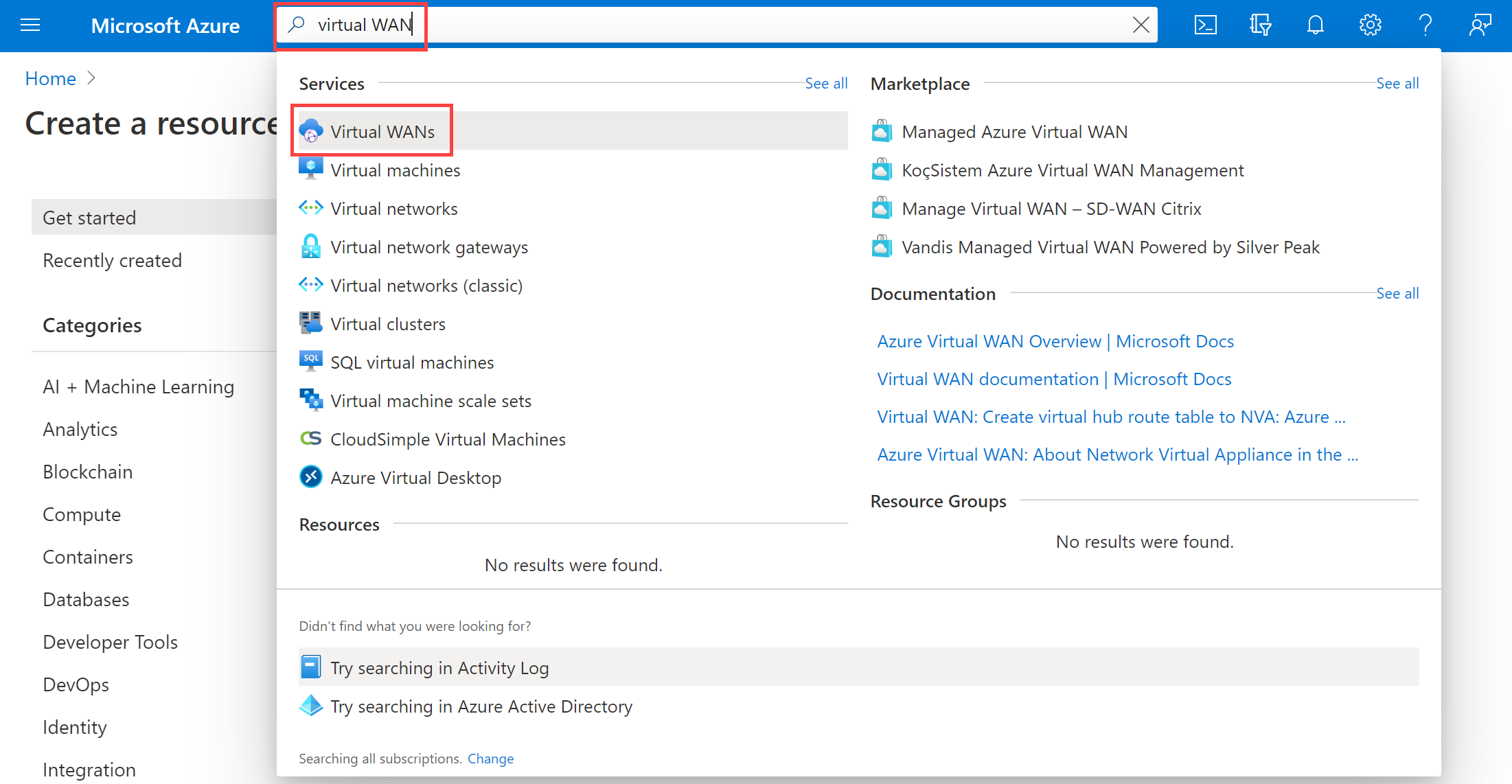
Go to the Azure Portal.
Search for Virtual WANs and select + Create.
On the Basics tab, fill in:
Subscription: (Use existing)
Resource Group: ContosoResourceGroup
Location: Any region (WAN is global, but region needed for resource placement)
Name: ContosoVirtualWAN
Type: Standard
Select Review + Create, then Create.
Task 2: Create a Virtual Hub

Open the ContosoVirtualWAN you created.
Under Connectivity, select Hubs > + New Hub.
On the Basics tab:
Region: West US
Name: ContosoVirtualWANHub-WestUS
Hub private address space: 10.60.0.0/24
Capacity: 2 Routing infrastructure units
Leave routing preference as default.

Go to the Site-to-site tab:
Create Site-to-site VPN Gateway: Yes
Gateway scale units: 2
Leave AS number and routing preference as default.
Click Review + Create, then Create.

Note: VPN gateway creation can take up to 30 minutes.
Task 3: Connect a VNet to the Virtual Hub
Go to the ContosoVirtualWAN > Virtual network connections > + Add connection.
Fill in:
Connection name: ContosoVirtualWAN-to-ResearchVNet
Hub: ContosoVirtualWANHub-WestUS
Subscription: (No change)
Resource Group: ContosoResourceGroup
Virtual network: ResearchVNet
Propagate to none: Yes
Associate Route Table: Default
Select Create.


Clean Up Resources
In Cloud Shell, run:
Remove-AzResourceGroup -Name 'ContosoResourceGroup' -Force -AsJob
Extend Your Learning with Copilot
Try these questions at copilot.microsoft.com:
What type of network architecture does Azure VWAN use?Azure Virtual WAN uses a hub-and-spoke architecture.
The hub is a Microsoft-managed virtual network that acts as a central point for connectivity.
Spokes include VNets, branch offices (via site-to-site VPN), remote users (via point-to-site VPN), and ExpressRoute circuits.
Traffic between spokes flows through the hub using Microsoft’s global backbone, enabling optimized, scalable, and secure routing.
What are the differences between Azure VWAN Basic and Standard?
| Feature | Basic | Standard |
| Site-to-Site VPN | ✅ Yes | ✅ Yes |
| Point-to-Site VPN | ❌ No | ✅ Yes |
| ExpressRoute support | ❌ No | ✅ Yes |
| VNet-to-VNet via Hub | ❌ No | ✅ Yes |
| Inter-region hub connectivity | ❌ No | ✅ Yes |
| Custom routing (route tables) | ❌ No | ✅ Yes |
Use Basic for simple S2S VPN-only deployments.
Use Standard for full enterprise, hybrid, or global network integration.
- Can I create an Azure VWAN using scripting tools?Yes. Azure VWAN supports deployment via:
- Azure CLI
az network vwan create --name ContosoVirtualWAN --resource-group ContosoResourceGroup --location eastus --type Standard
- Azure PowerShell
New-AzVirtualWan -ResourceGroupName "ContosoResourceGroup" -Name "ContosoVirtualWAN" -Location "East US" ` -Type "Standard"
Key Takeaways
Azure Virtual WAN simplifies global connectivity using a hub-and-spoke architecture.
Use cases include: Site-to-Site, Point-to-Site, and ExpressRoute.
Basic VWAN supports only Site-to-Site VPN.
Standard VWAN supports all scenarios, including enhanced routing, hubs, and multiple VPN types.