This is just a summary. Find the complete lab instructions on GitHub!
Scenario
Simplify Azure resource management by:
Creating a management group for your subscriptions.
Granting Help Desk the ability to submit support requests, limited to:
Creating and managing virtual machines
Creating support request tickets (excluding adding Azure providers)
Interactive Simulations
Optional simulations to reinforce your understanding:
Manage access with RBAC: Assign roles and monitor activity logs.
Manage subscriptions and RBAC: Implement a management group and create/assign roles.
Open a support request: Review options, create and monitor requests.
Architecture Diagram
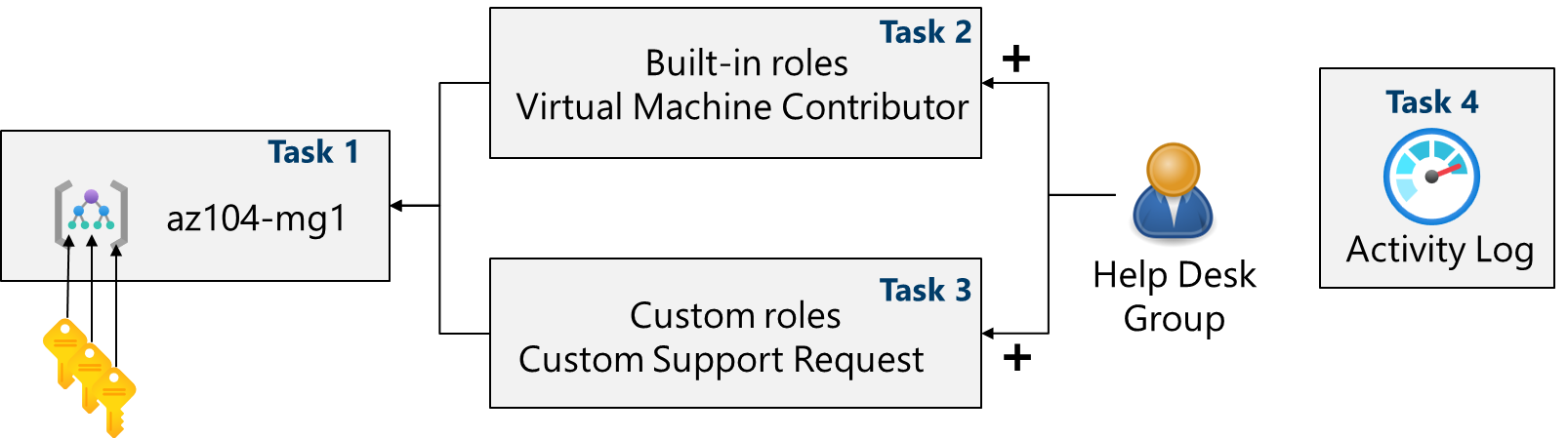
Task 1: Implement Management Groups
Sign in to the Azure portal: https://portal.azure.com
Navigate to: Microsoft Entra ID > Properties > Management groups > + Create
Create a management group:
Management group ID
az104-mg148607161(must be unique)Management group display name
az104-mg148607161|
Task 2: Assign Built-in Role
Select the
az104-mg148607161management group.Navigate to: Access control (IAM) > Roles > + Add > Add role assignment
Select "Virtual Machine Contributor" role.
Assign the role to the
helpdeskgroup.
Task 3: Create Custom RBAC Role
Navigate to: Access control (IAM) > + Add > Add custom role
Configure the custom role:
Custom role name
Custom Support Request48607161Description
A custom contributor role for support requests.Baseline permissions Clone "Support Request Contributor"
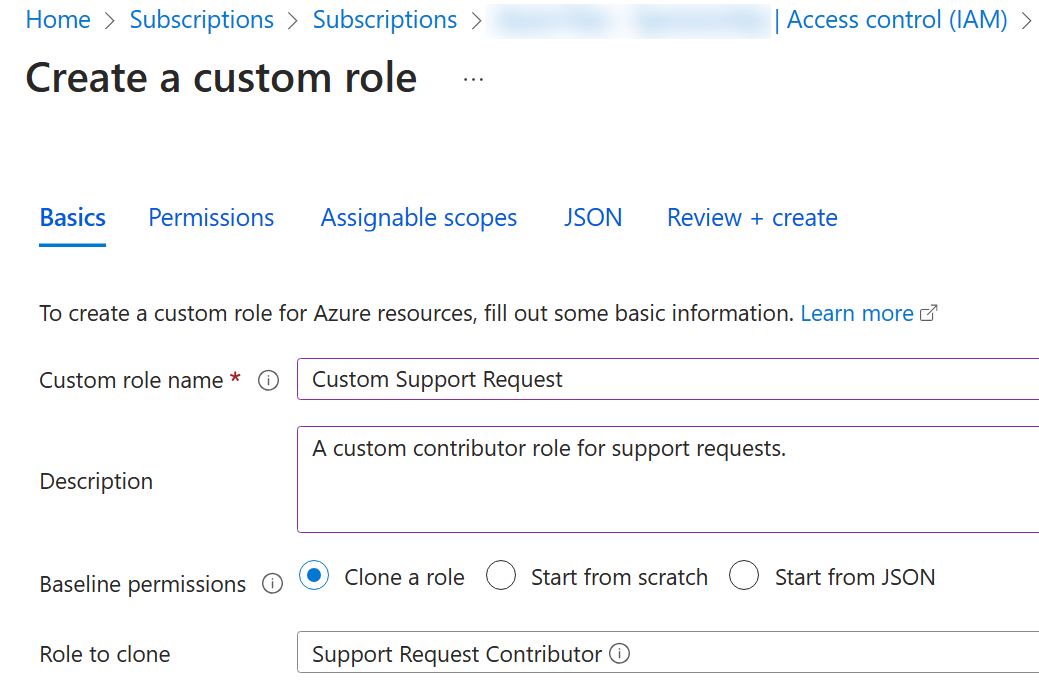
Exclude the "Registers Support Resource Provider" permission.
Ensure your management group is listed in "Assignable scopes".
Review the JSON and create the role.
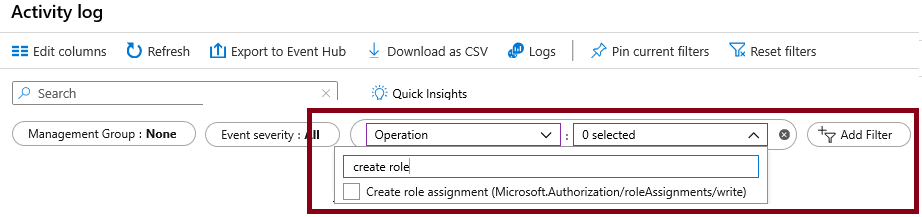
Task 4: Monitor Role Assignments
For the
az104-mg148607161resource, select "Activity log".Review the role assignment activities.
Cleanup
Delete the lab resources to avoid unnecessary costs.
Azure portal: Delete the resource group.
PowerShell:
Remove-AzResourceGroup -Name resourceGroupNameCLI:
az group delete --name resourceGroupName
About the authors
I’m Amir Rouhanipoor, an IT Consultant specializing in Azure and cloud solutions. I help organizations streamline their IT and drive growth through secure, efficient cloud technologies.
Security-focused Cloud & Automation Engineer with a Master’s in Computer Science and 6+ years of experience automating and supporting enterprise IT environments across multi-site corporate and operational infrastructures. Proficient in Python scripting, Azure infrastructure, Windows Server, and identity management. Skilled in integrating third-party platforms, securing configurations, and streamlining operations. Currently pursuing the Cybersecurity Architect Expert certification with a strong focus on cloud security and automation.
Comments
Join the discussionNo comments yet. Be the first to comment.