visit microsoft learn github for complete instructions
Lab 06: Add a federated identity provider
Lab scenario
Your company works with many vendors and, on occasion, you need to add some vendor accounts to your directory as a guest and allow them to use their Google account to sign-in.
Exercise 1 - Configure identity providers
Task 1 - Configure Google to be used as an identity provider
- Go to the Google APIs at https://console.developers.google.com, and sign in with your Google account. We recommend that you use a shared team Google account.

2- Click on select a project and then create a new project

- Select the project and on the left menu select OAuth consent screen

- Click “Get Started”, select the app name Entra ID, and sign in with your Gmail account.

- For the Audience, choose External.

- Contact information:

- I agree to.. :

- Click continue and create:

- Click on create OAuth client and for application type select web application, name: Entra B2B, under authorized redirect URIs select the following URIs:
https://login.microsoftonline.com
https://login.microsoftonline.com/te/**tenant ID**/oauth2/authresp
(where <tenant ID> is your tenant ID)
To find your tenant id and tenant (directory)name:
Entra>“Identity” > “Overview” (under Tenant).
Azure >the top-right corner> account name > “Switch directory” (if needed)>Click on your directory> Under Overview
https://login.microsoftonline.com/te/**tenant name**.onmicrosoft.com/oauth2/authresp
(where <tenant name> is your tenant name)


- Select Create. Copy your client ID and client secret. You'll use them when you add the identity provider in the Azure portal. You can leave your project at a publishing status of Testing
Task 2 - Add a test user
- On https:// console.cloud.google.com go to APIs & Services > OAuth consent screen, then select Audience and add users under test ussers:


- Enter your gmail and click on save

Exercise 2 - Configure Azure to work with an External identity provider
Task 1 - Configure Microsoft Entra ID for Google federation
Select Microsoft Entra ID > Identity > External Identities > All identity providers > Google > Configure
(Microsoft provides a direct federation for Google as an identity provider)
Enter the client ID and Client secret that we optained (or you can find it in console.cloud.google.com > > API and Services > credentials )


Task 2 - Invite you Test User account
If you used an existing Gmail account, remember to delete the account with External Identities | All identity providers. You can also return to the Google developer console and delete the project that you created.
Entra > All users > Invite External user and enter your test gmail information

Task 3 - Accept the invitation and login
- check your email and accept the invite and follow the prompts untill you gets to myapplications.microsoft.com


Task 4 - Login to Microsoft 365 using your Google account
- Login to login.microsoft.com using your gmail account(choose sigin in option and then choose sign in to an organization)


- enter yout lab tenant domain name


- and then it takes you to google login page:


Lab 07: Add Hybrid Identity with Microsoft Entra Connect (Optional)
Lab 08: Enable multi-factor authentication
Login type = Microsoft 365 admin
A Microsoft Entra ID Premium license is required for this exercise.
- Login to entra and search for multifactor authentication (or just go to identity> protection> risky activity > multifactor authentication)

- Under configure click on additional cloud-based multifactor authentication settings
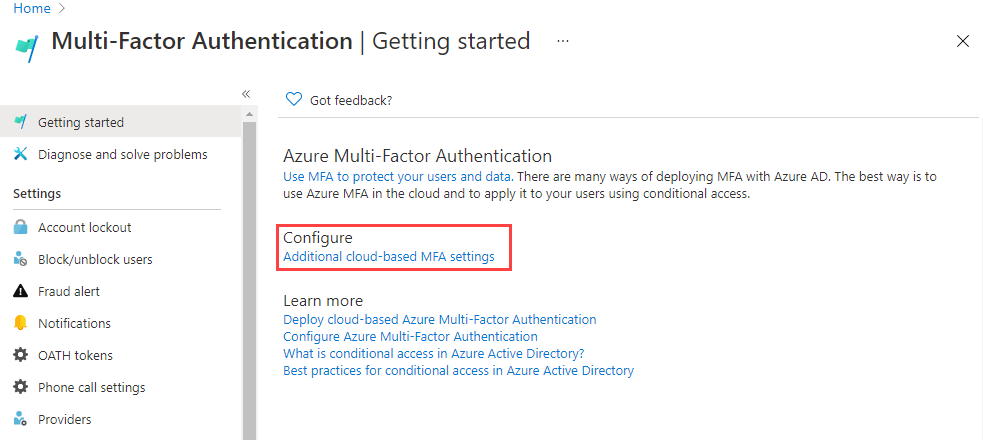
- You can enable/ disable or enforce MFA from here:

- In service settings : You can also enable or disable app passwords here, which allow users to create unique account passwords for apps that don't support multi-factor authentication. This feature lets the user authenticate with their Microsoft Entra identity using a different password specific to that app.

Task 2 - Setup conditional access rules for MFA for Delia Dennis
- Go to Entra > Identity> Protection > Conditional Access and for the policy name: MFA_for_username and then select the user:

- For target resource select office 365 (previously we gave her o365 license)

- For network select no for configure

- Also any network or location configured for condition:

- Under grant do these settings and enable the policy and click on create:

Task 3 - Test Delia's login
- login on www.office.com using Delia’s credential. You can see you need to have MFA.


Exercise 2 - Configure MFA to be required for login
Task 1 - Configure Microsoft Entra Per-User MFA
- click on per user MFA

- select the user and enable the MFA for the user and then try to login with the user:

- When you want to login you will be asked to use microsoft authenticator:

Lab 09 - Configure and deploy self-service password reset
- Create a security group of 3 users:

Enable SSPR for your test group (add the group on entra>protection>password reset>properties):

Under *Manage, select and review the default values for each of the Authentication methods, Registration, Notifications, and Customization settings.


- Register a user in our test group for SSPR ( just login with the user on https://login.microsoftonline.com/ ) and you will get this prompt:


- To test SSPR Use one of the users in your test group and in login screen of http://portal.azure.com click on forgot my password :


- Use a user account that you previously configured with Multi-Factor Authentication (MFA) during Step 3 when signing in and click on forgot my password.


- If you attempt to log in with a user who is not part of the SSPRTesters group and click ‘Forgot my password,’ you’ll see the following prompt:

Lab 10 - Microsoft Entra Authentication for Windows and Linux Virtual Machines
Login type = Azure Resource login
Create a vm and on the management tab select login with Microsoft Entra ID (On the Management tab, check the box to Login with Microsoft Entra ID under the Microsoft Entra ID section.)
You will notice that the System-assigned managed identity in the Identity section is automatically selected and grayed out. This behavior occurs by default when ‘Login with Microsoft Entra ID’ is enabled.

Assign a job function role of “virtual machine administrator login” to a user
Start an RDP session with the user to the virtual machine. Then, go to the Remote settings and uncheck “Allow connections only from computers running Remote Desktop with Network Level Authentication”.
Modify your RDP file to support the Microsoft Entra ID login: Select the Connect menu item. On the RDP tab select the Download RDP File.
Make a copy of the RDP file and add -EntraID to the end of the filename.
Edit the new version of the RDP file you just copied using Notepad. Add the these two lines of text to the bottom of the of the file:
enablecredsspsupport:i:0
authentication level:i:2
Save the RDP file. You should now have two versions of the file:
<>.RDP
<>-EntraID.RDP

- Run the rdp-entraid and login with entra id user with vm admin login access(try with any other user and you cannot login)
About the authors
Security-focused Cloud & Automation Engineer with a Master’s in Computer Science and 6+ years of experience automating and supporting enterprise IT environments across multi-site corporate and operational infrastructures. Proficient in Python scripting, Azure infrastructure, Windows Server, and identity management. Skilled in integrating third-party platforms, securing configurations, and streamlining operations. Currently pursuing the Cybersecurity Architect Expert certification with a strong focus on cloud security and automation.
I’m Amir Rouhanipoor, an IT Consultant specializing in Azure and cloud solutions. I help organizations streamline their IT and drive growth through secure, efficient cloud technologies.
Comments
Join the discussionNo comments yet. Be the first to comment.