Configure and test both an Azure Load Balancer (Layer 4) and an Azure Application Gateway (Layer 7) for distributing traffic to web servers.
Scenario: Your organization hosts a public website. You need to load balance incoming traffic across multiple virtual machines (VMs) for high availability. Additionally, you want to route requests for images and videos to different backend servers based on the URL path.
Key Concepts:
Azure Load Balancer: Distributes network traffic at Layer 4 (TCP/UDP). Provides high availability and scalability.
Azure Application Gateway: A web traffic load balancer (Layer 7) that can make routing decisions based on URL path, host headers, and other HTTP attributes. Offers features like Web Application Firewall (WAF).
Frontend IP Configuration: The public or private IP address that clients use to access the load-balanced service.
Backend Pool: The group of VMs or other resources that receive the traffic from the load balancer.
Health Probes: Checks the health of backend instances to ensure traffic is only sent to healthy servers.
Load Balancing Rules: Define how incoming traffic is distributed to the backend pool based on port, protocol, and other criteria.
Listener (Application Gateway): Listens for incoming traffic on a specific port and protocol.
Routing Rule (Application Gateway): Connects a listener to a backend pool and defines how traffic is routed based on URL path or other criteria.
Lab Tasks :
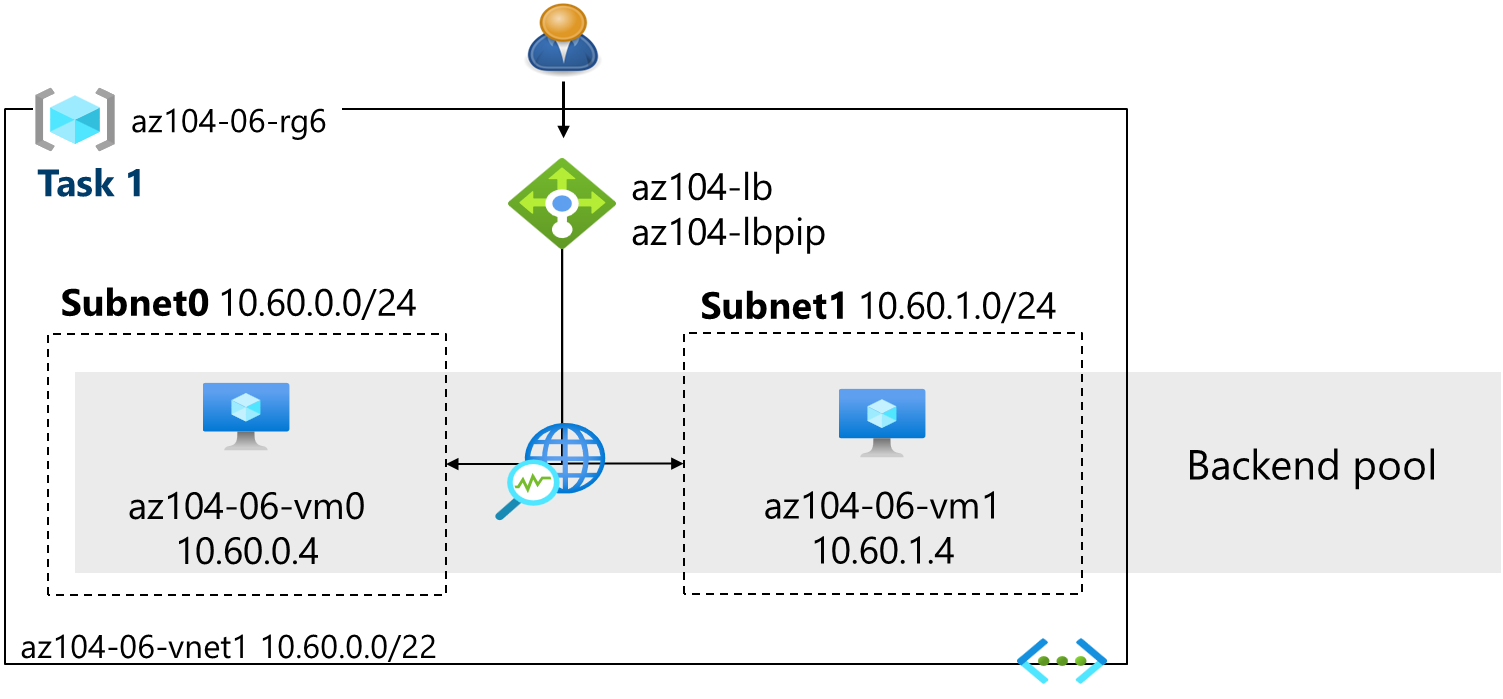
Job skills
Task 1: Use a template to provision an infrastructure.
Task 2: Configure an Azure Load Balancer.
Task 3: Configure an Azure Application Gateway.
Task 1: Provision Infrastructure (Template)
Download Lab Files: Download the
\Allfiles\Lab06files (template and parameters). These should includeaz104-06-vms-template.jsonandaz104-06-vms-parameters.json.Deploy Custom Template:
Search for and select "Deploy a custom template" and choose "Build your own template in the editor."
Click "Load file" and select
az104-06-vms-template.jsonand click "Save."Click "Edit parameters" and load the
az104-06-vms-parameters.jsonfile and click "Save."Basics:
Subscription: (Select your subscription)
Password: (Provide a strong password)
- Wait for Deployment: The deployment will take about 5 minutes. Do not proceed until it's complete. You can review the resources being created (1 VNet, 3 subnets, 2 VMs, 1 NSG).
Task 2: Configure Azure Load Balancer

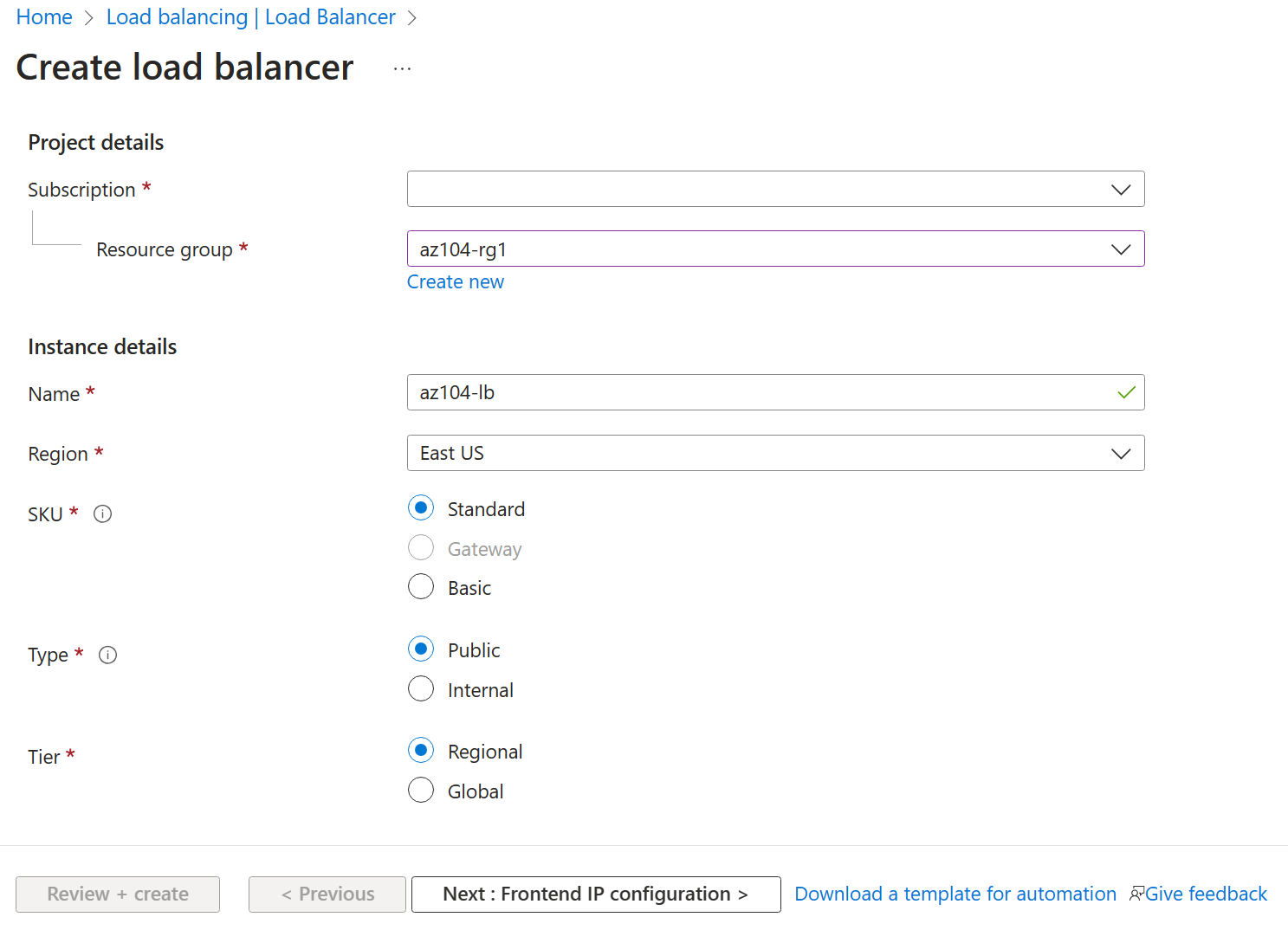
Create Load Balancer: Search for and select "Load balancers" and click "+ Create."
Basics:
Subscription: (Your subscription)
Resource Group:
az104-rg6Name:
az104-lbSKU:
StandardType:
PublicTier:
Regional
Select Next: Frontend IP configuration.
Frontend IP Configuration:
Click "Add a frontend IP configuration."
Name:
az104-feIP type:
IP addressClick Create new under the Public IP address section. Use the following and click OK.
Name:
az104-lbpipSKU: Standard
Tier: Regional
Assignment: Static
Select Next: Backend pools.

Backend Pool:
Click "Add a backend pool."
Name:
az104-beVirtual network:
az104-06-vnet1Backend Pool Configuration:
NIC
Select Add.
- Add both
az104-06-vm0andaz104-06-vm1to the backend pool (check the boxes).
- Add both
Click "Add" (to add the VMs)
Click Add (to create the backend pool).
Select Next: Inbound Rules.

Load Balancing Rule:

Click "+ Add a load balancing rule."
Name:
az104-lbruleIP Version:
IPv4Frontend IP address:
az104-feBackend pool:
az104-beProtocol:
TCPPort:
80Backend port:
80Health probe: Click "Create new."
Name:
az104-hpProtocol:
TCPPort:
80Interval:
5Click "OK."
Session persistence:
NoneIdle timeout (minutes):
4TCP reset:
DisabledFloating IP:
Disabled*Outbound source network address translation (SNAT):Recommended
Review + create: verify, and create.

- Wait for Deployment and Go to Resource: Wait for the load balancer to deploy, then click "Go to resource."

- Test Load Balancer: * Locate the Load Balancer in the portal. * In Settings, Select
Frontend IP Configuration. * Copy thePublic IP addressfrom the Frontend IP configuration. * Open a new browser tab and paste the IP address. You should see "Hello World from az104-06-vm0" or "Hello World from az104-06-vm1." * Refresh the page several times (or open a new InPrivate/Incognito window). The message should alternate between the two VMs, demonstrating load balancing.
Task 3: Configure Azure Application Gateway
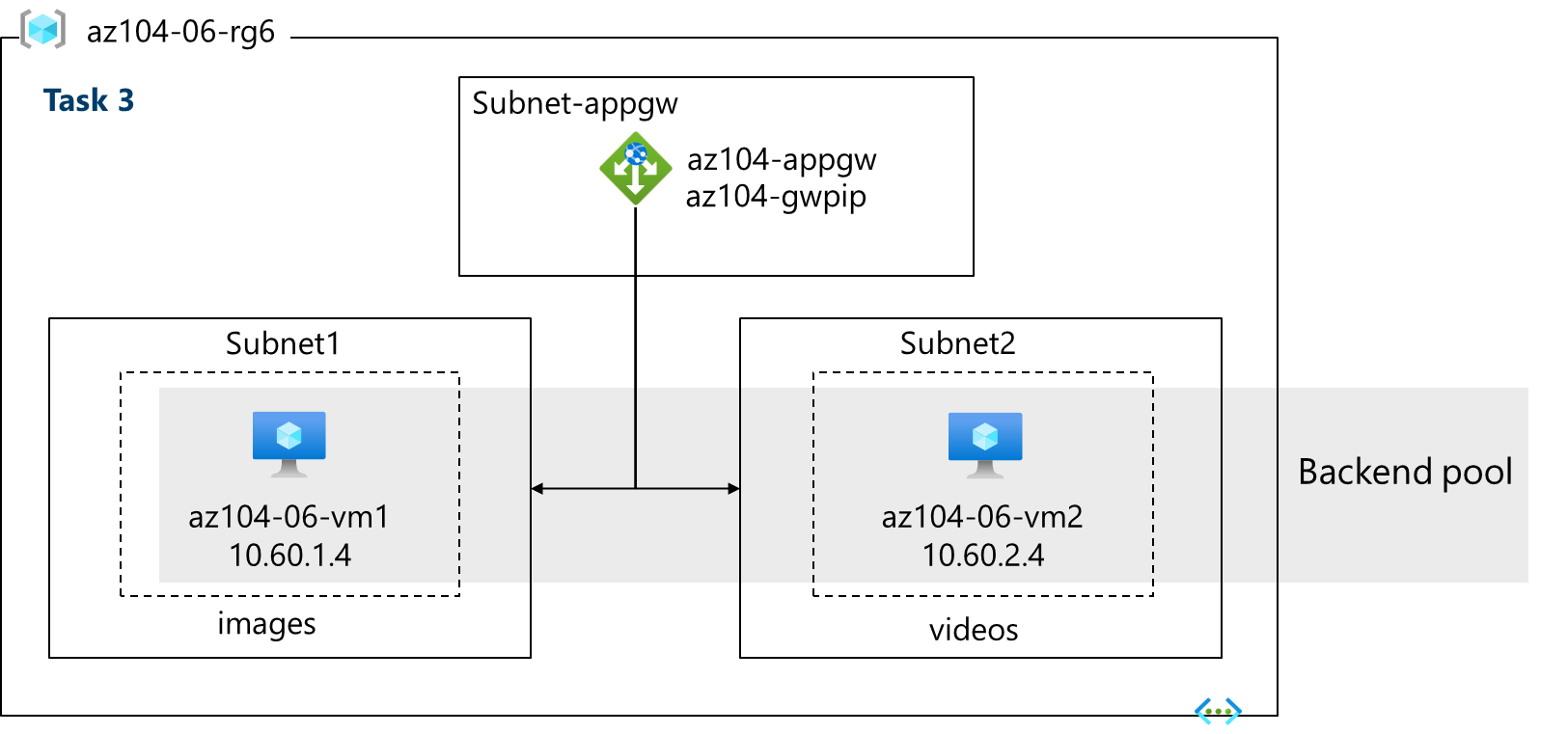
Add Subnet:
Find
az104-06-vnet1and under "Settings," select "Subnets."Click "+ Subnet."
Name:
subnet-appgwStarting address:
10.60.3.224/27(This provides enough addresses for the Application Gateway)
Click "Save."
Create Application Gateway:
Search for and select "Application gateways."
Click "+ Create."
Basics:
Subscription: (Your subscription)
Resource Group:
az104-rg6Application gateway name:
az104-appgwTier:
Standard V2Enable autoscaling:
NoMinimum instance count:
2Availability zone:
1(default)HTTP2:
DisabledVirtual network:
az104-06-vnet1Subnet:
subnet-appgw (10.60.3.224/27)
Click "Next: Frontends >."

Frontend Configuration:
Frontend IP address type:
PublicPublic IP address: Click "Add new."
Name:
az104-gwpipClick OK.
Click "Next: Backends >."

Backend Pools:
Click "Add a backend pool."
Name:
az104-appgwbeAdd backend pool without targets:
NoAdd the virtual machines: Select the NICs of both VM's:
az104-06-nic1 (10.60.1.4)andaz104-06-nic2 (10.60.2.4)Click "Add."
Add an images backend pool:
Click "Add a backend pool."
Name:
az104-imagebeAdd without targets:
NoAdd
az104-06-nic1(10.60.1.4)Click "Add".
Add a videos backend pool:
Click "Add a backend pool."
Name:
az104-videobeAdd without targets:
NoAdd
az104-06-nic2(10.60.2.4)Click "Add".


- Configuration (Routing Rule):
Click "Next: Configuration >."
Click Add a routing rule
Click "Add a routing rule."
Rule name:
az104-gwrulePriority:
100Listener name:
az104-listenerFrontend IP:
Public IPv4Protocol:
HTTPPort:
80Listener type:
Basic


- witch to the Backend targets tab.
Backend Target:
az104-appgwbeBackend settings: Click "Add new."
Backend Setting Name:
az104-httpClick "Add."

- Under the Path-based routing section, select Add multiple targets to create a path-based rule
Add rule for images.
Path:
/image/*Target name:
imagesBackend settings:
az104-httpBackend Target:
az104-imagebeSelect Add.
Add rule for videos.
Path:
/video/*Target name:
videosBackend settings:
az104-httpBackend Target:
az104-videobeSelect Add.
Click Save


- Review and Create:
Clik "Next: Tags >" (no changes needed).
Click "Next: Review + create >," then click "Create."
Wait for Deployment: This will take 5-10 minutes.
- Test Application Gateway:
Once deployed, go to the
az104-appgwresource.Check Backend Health (under "Monitoring"): Ensure both servers in the backend pool show
Healthy.

On the "Overview" blade, copy the
Frontend public IP address.Test Image Routing: Open a new browser tab and go to
http://<frontend ip address>/image/. You should be directed to the image server (vm1).Test Video Routing: Open a new browser tab and go to
http://<frontend ip address>/video/. You should be directed to the video server (vm2).You may need to use InPrivate/Incognito windows or clear your cache to ensure you're seeing the correct routing.
Here is the task 3 in summary:
Create Subnet:
In the Azure portal, add a subnet (
subnet-appgw) toaz104-06-vnet1for the Application Gateway.Ensure the subnet size is /27 or larger.
Deploy Application Gateway:
Use the Azure portal to create an Application Gateway (
az104-appgw) with the following settings:Resource Group:
az104-rg6Region: Same as Task 1
Tier: Standard V2
Virtual Network:
az104-06-vnet1Subnet:
subnet-appgw
Frontend IP: Create a public IP address (
az104-gwpip).
Configure Backend Pools:
Create backend pools to route traffic:
az104-appgwbe: General pool with both VMs (
az104-06-nic1andaz104-06-nic2).az104-imagebe: Routes images to VM (
az104-06-nic1).az104-videobe: Routes videos to VM (
az104-06-nic2).
Add Routing Rules:
Add routing rules for path-based traffic:
Rule for Images: Routes traffic with
/image/*path toaz104-imagebe.Rule for Videos: Routes traffic with
/video/*path toaz104-videobe.
About the authors
I’m Amir Rouhanipoor, an IT Consultant specializing in Azure and cloud solutions. I help organizations streamline their IT and drive growth through secure, efficient cloud technologies.
Security-focused Cloud & Automation Engineer with a Master’s in Computer Science and 6+ years of experience automating and supporting enterprise IT environments across multi-site corporate and operational infrastructures. Proficient in Python scripting, Azure infrastructure, Windows Server, and identity management. Skilled in integrating third-party platforms, securing configurations, and streamlining operations. Currently pursuing the Cybersecurity Architect Expert certification with a strong focus on cloud security and automation.
Comments
Join the discussionNo comments yet. Be the first to comment.