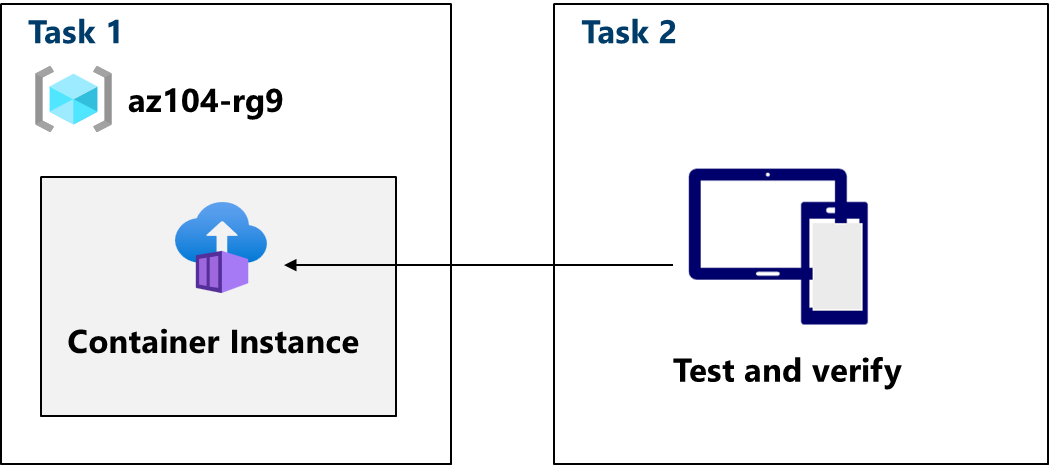
Objective: This lab demonstrates how to deploy and test a containerized web application using Azure Container Instances (ACI).
Scenario: Your organization is evaluating Azure Container Instances as a solution for deploying a web application to the cloud without managing virtual machines. This is part of a broader effort to reduce infrastructure management overhead.
Key Concepts:
Azure Container Instances (ACI): A serverless compute service for running containers directly on Azure. It's ideal for simple applications, task automation, and build jobs, removing the need to manage underlying VMs.
Docker Image: A package containing an application and its dependencies, ensuring consistent execution across different environments.
Container Group: A collection of containers scheduled together on the same host in ACI. This lab uses a single-container group.
Job skills
Task 1: Deploy an Azure Container Instance using a Docker image.
Task 2: Test and verify deployment of an Azure Container Instance.
Lab Tasks:
Task 1: Deploy an Azure Container Instance

Sign In: Log in to the Azure portal (https://portal.azure.com).
Create Container Instance: Search for and select "Container instances." and click "+ Create."
Basics:
Container name:
az104-c1Image source:
Quickstart imagesImage:
mcr.microsoft.com/azuredocs/aci-helloworld:latest (Linux)
Networking: DNS name label: (Enter a globally unique name. This forms your container's public URL.) If you receive an error, try a different name.
Monitoring: Uncheck
Enable container instance logs. (Simplifies the lab; you can explore logging later.)Advanced: Accept the defaults then review + create**:** Verify the settings and click "Create.
Wait for Deployment: Allow 2-3 minutes for the deployment to complete.

Task 2: Test and Verify Deployment
Go to Resource: On the "Overview" blade, confirm the "Status" is
Running.Access the Application:
- Copy the
FQDNfrom the "Overview" blade.
- Copy the

- Open a new browser tab and paste the FQDN. You should see the "Welcome to Azure Container Instances" page.
View Logs (Optional):
In your container instance, under "Settings," select "Containers."
Select "Logs."
You should see HTTP request logs from your browser. Refresh the web page a few times to generate more log entries.

Cleanup (Crucial):
- Delete the
az104-rg9-lod48969906resource group to remove all lab resources. This prevents ongoing charges.
About the authors
I’m Amir Rouhanipoor, an IT Consultant specializing in Azure and cloud solutions. I help organizations streamline their IT and drive growth through secure, efficient cloud technologies.
Security-focused Cloud & Automation Engineer with a Master’s in Computer Science and 6+ years of experience automating and supporting enterprise IT environments across multi-site corporate and operational infrastructures. Proficient in Python scripting, Azure infrastructure, Windows Server, and identity management. Skilled in integrating third-party platforms, securing configurations, and streamlining operations. Currently pursuing the Cybersecurity Architect Expert certification with a strong focus on cloud security and automation.
Comments
Join the discussionNo comments yet. Be the first to comment.