Objective: This lab guides you through deploying a simple containerized application to Azure Container Apps (ACA).
Scenario: Your organization is migrating an on-premises web application to the cloud and wants to minimize server management. You'll evaluate Azure Container Apps as a serverless container solution.
Key Concepts:
Azure Container Apps (ACA): A fully managed, serverless container platform built on Kubernetes. It allows you to run containerized applications without managing the underlying infrastructure (VMs or Kubernetes clusters directly).
Container App Environment: A secure boundary around a group of container apps. All container apps within an environment share the same virtual network and write logs to the same Log Analytics workspace.
Container App: A single application deployed to ACA, which can consist of one or more revisions. Each revision is an immutable snapshot of the app's configuration.
Revision: A version of your container app's configuration. Changes to the container image, environment variables, or scaling rules create a new revision.
Ingress: Controls how external traffic reaches your container app. ACA automatically configures HTTP ingress for you.
Job skills
Task 1: Create and configure an Azure Container App and environment.
Task 2: Test and verify deployment of the Azure Container App.
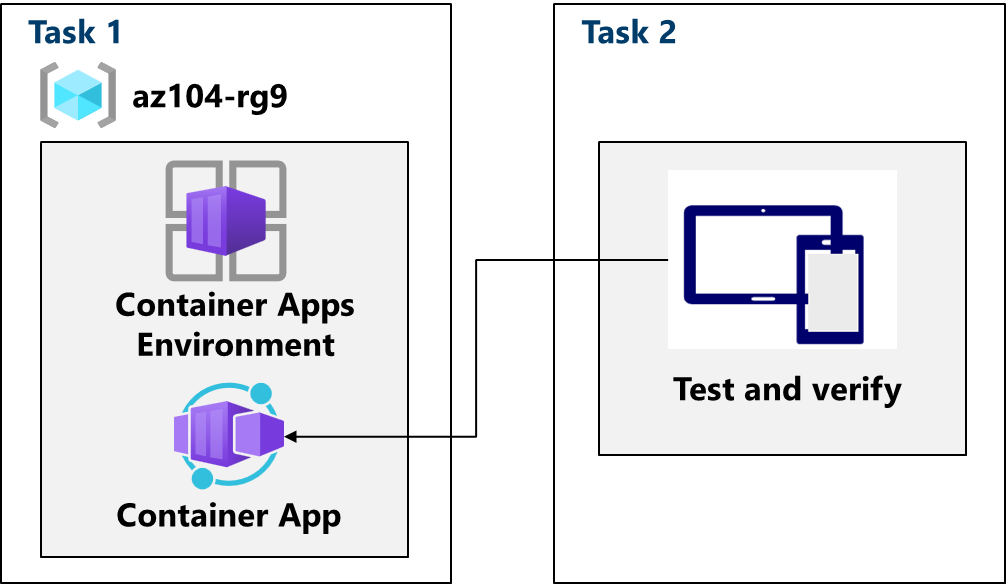
Task 1: Create and Configure an Azure Container App and Environment
Sign In: Log in to the Azure portal (https://portal.azure.com).
Create Container App: Search for and select "Container Apps" and click "Create."
Basics tab:
Container app name:
my-app(or a unique name)Container Apps Environment: Click "Create new."
Environment name:
my-environmentClick "Create".
Container tab:
Ensure "Use quickstart image" is enabled.
The quick start image should be set to "Simple hello world container".
Review + create: Verify the settings, and click "Create."


Task 2: Test and Verify Deployment
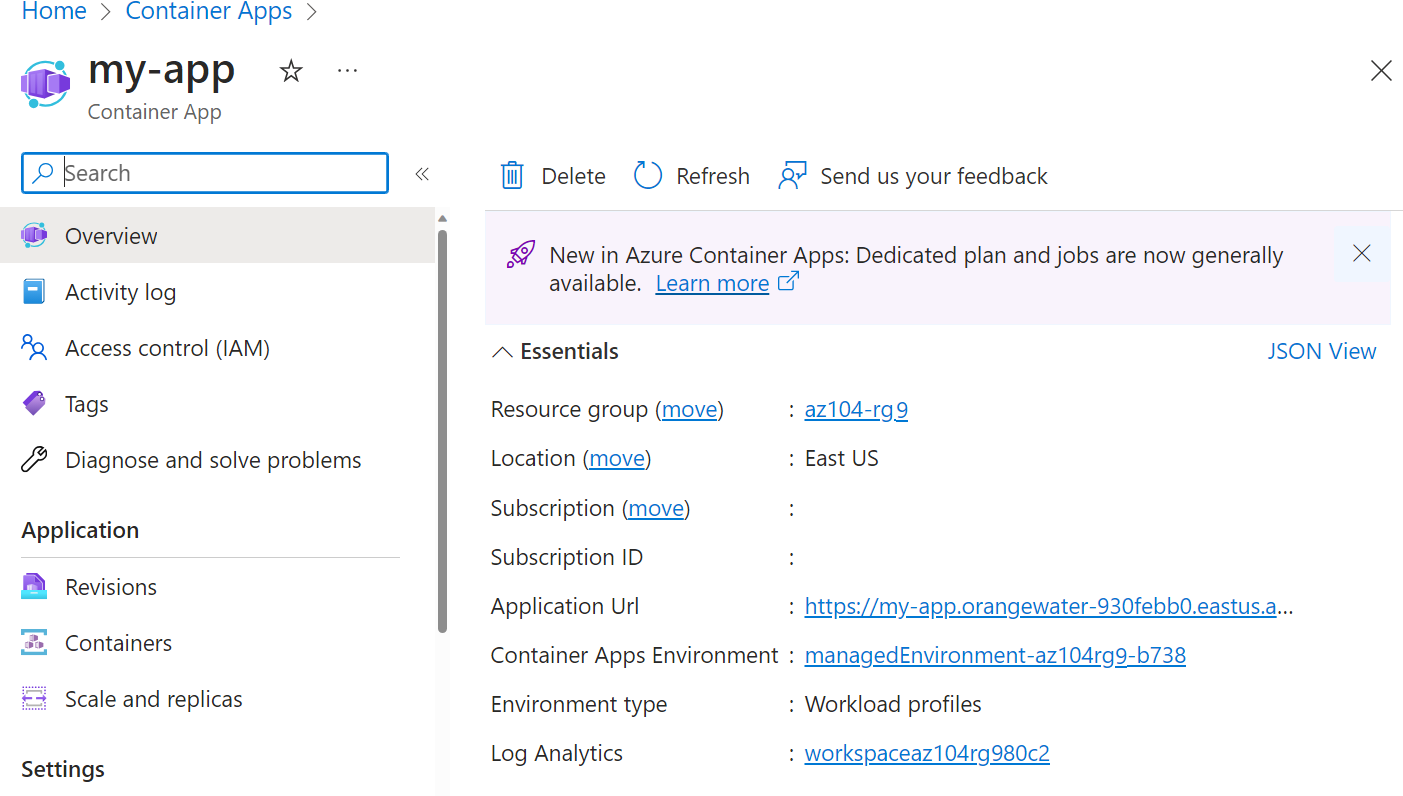
Go to Resource: Once deployed, click "Go to resource."
Access the Application:
On the "Overview" blade, find the "Application URL." This is the public endpoint for your container app.
Click the "Application URL" link. A new browser tab will open.
Verify Application: You should see a page with the message "Your Azure Container Apps app is live!". This confirms that your container app is running and accessible.

Cleanup (Crucial):
- Delete the
az104-rg9resource group (or the resource group you used) to remove all lab resources. This prevents unnecessary charges.
About the authors
I’m Amir Rouhanipoor, an IT Consultant specializing in Azure and cloud solutions. I help organizations streamline their IT and drive growth through secure, efficient cloud technologies.
Security-focused Cloud & Automation Engineer with a Master’s in Computer Science and 6+ years of experience automating and supporting enterprise IT environments across multi-site corporate and operational infrastructures. Proficient in Python scripting, Azure infrastructure, Windows Server, and identity management. Skilled in integrating third-party platforms, securing configurations, and streamlining operations. Currently pursuing the Cybersecurity Architect Expert certification with a strong focus on cloud security and automation.
Comments
Join the discussionNo comments yet. Be the first to comment.