This lab teaches you how to implement organizational governance using Azure Policy and resource tagging. You'll learn to enforce resource tagging, update existing resources, and use resource locks.
Scenario
Improve Azure resource management by:
Applying resource tags for metadata.
Enforcing resource tags for new resources.
Updating existing resources with tags.
Using resource locks for protection.
Interactive Simulations
Optional simulations:
Architecture Diagram
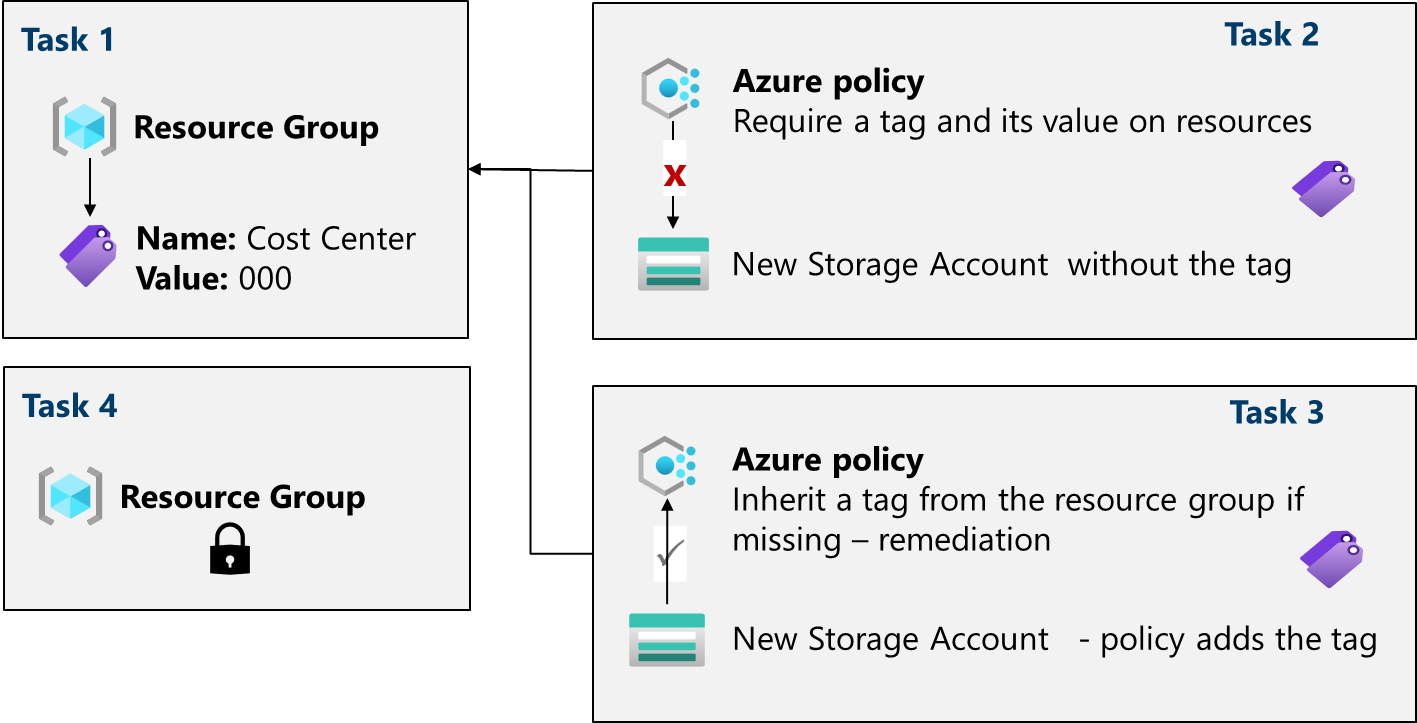
Task 1: Assign Tags
Sign in to the Azure portal: https://portal.azure.com
Create a resource group (e.g.,
az104-rg2in East US).On the Tags tab, create a tag (e.g.,
Cost Center: 000).
Task 2: Enforce Tagging
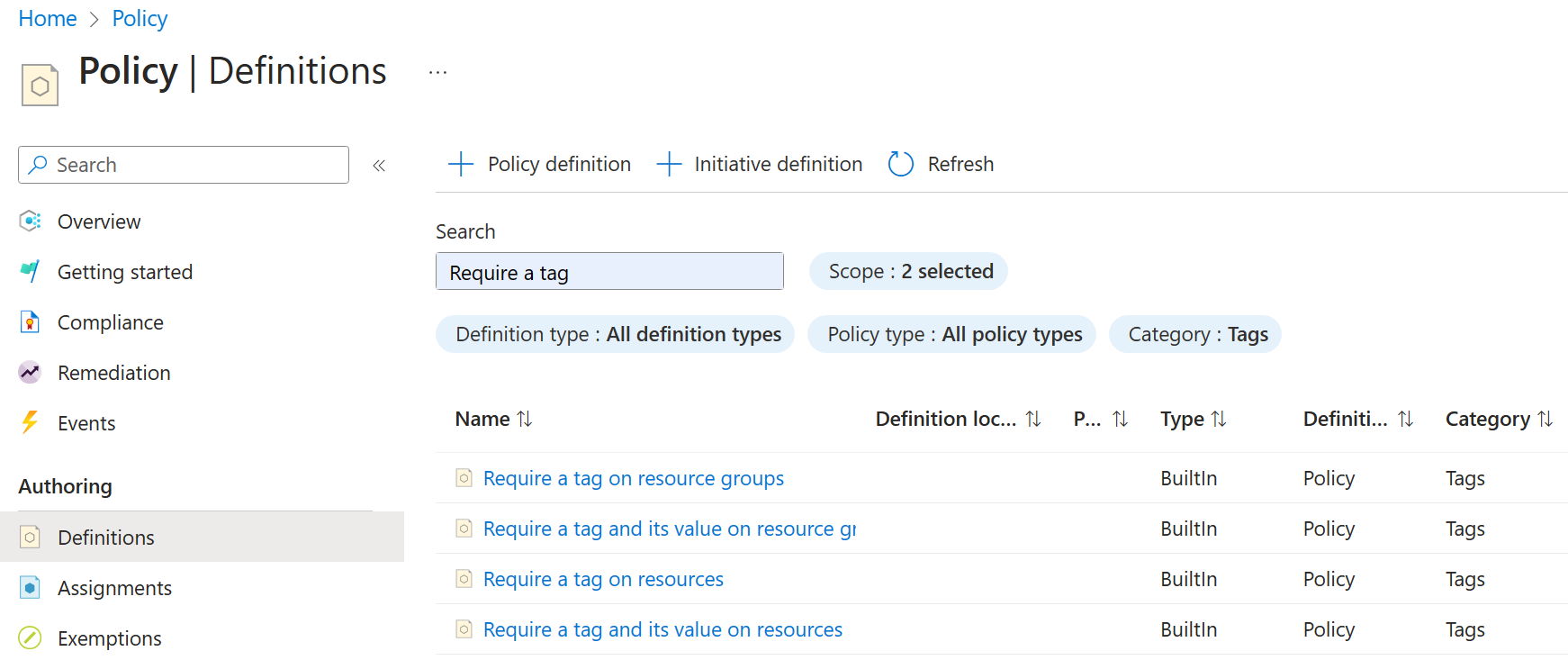
Navigate to: Policy > Authoring > Definitions > find “Require a tag and its value on resources”
Click "Assign" and select your subscription and resource group.
Configure the assignment:
Assignment name
Require Cost Center tag with Default valueDescription
Require Cost Center tag with default value for all resources in the resource groupPolicy enforcement Enabled

Set parameters (e.g.,
Tag Name: Cost Center,Tag Value: 000).Create the assignment.
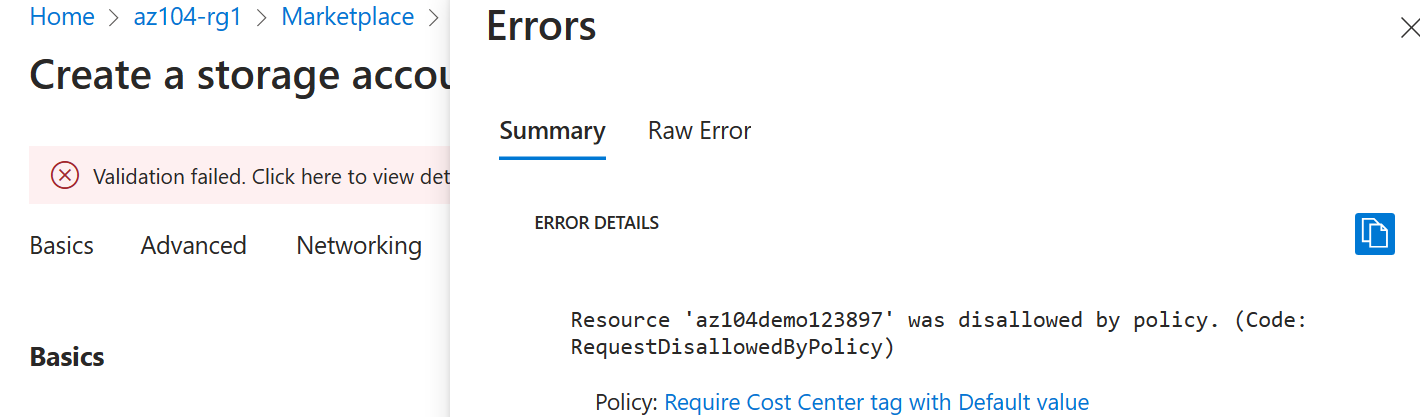
Try creating a storage account without the tag to verify enforcement. you will get this error message:
Task 3: Apply Tagging
Navigate to: Policy > Authoring > Assignments
Delete the previous assignment.
Assign the "Inherit a tag from the resource group if missing" policy.
Configure the assignment:
Assignment name
Inherit the Cost Center tag and its value 000 from the resource group if missingDescription
Inherit the Cost Center tag and its value 000 from the resource group if missing| | Policy enforcement EnabledSet parameters (e.g.,
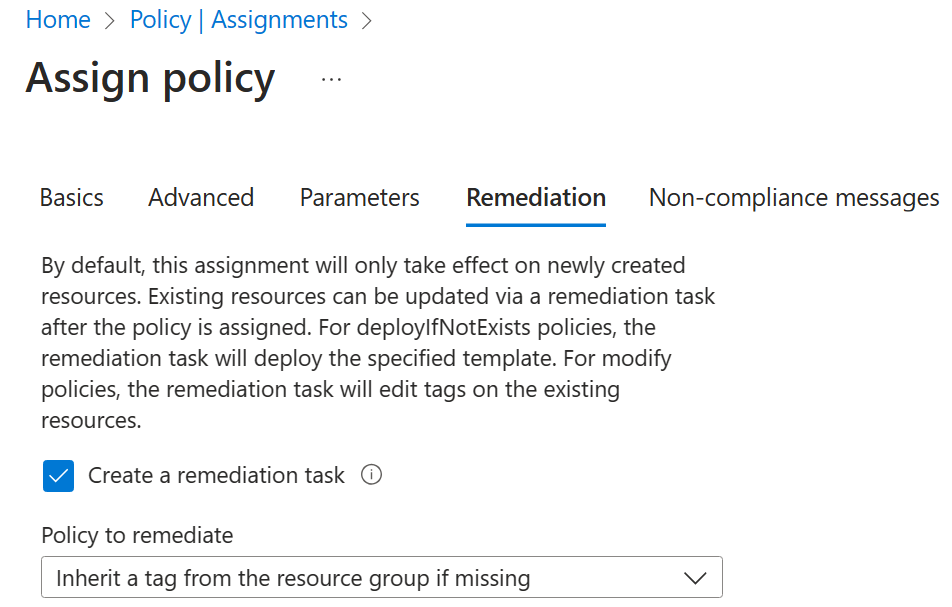
Tag Name: Cost Center).Enable remediation task.
Policy to remediate : Inherit a tag from the resource group if missing
Create the assignment.
Create a storage account without the tag to verify automatic tagging.
Task 4: Configure Resource Locks
Navigate to your resource group > Settings > Locks > Add
Create a lock (e.g.,
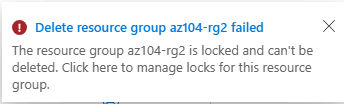
rg-lockwithdeletelock type).Try deleting the resource group to verify the lock.
Cleanup
Delete the lab resources to avoid unnecessary costs.
Azure portal: Delete the resource group.
PowerShell:
Remove-AzResourceGroup -Name resourceGroupNameCLI:
az group delete --name resourceGroupName
Key Takeaways
Azure tags are key-value pairs used as metadata for resources.
Azure Policy enforces conventions and compliance for resources.
Remediation tasks bring non-compliant resources into compliance.
Resource locks prevent accidental deletion or modification.
Azure Policy is a pre-deployment security practice, while RBAC and resource locks are post-deployment.
About the authors
I’m Amir Rouhanipoor, an IT Consultant specializing in Azure and cloud solutions. I help organizations streamline their IT and drive growth through secure, efficient cloud technologies.
Security-focused Cloud & Automation Engineer with a Master’s in Computer Science and 6+ years of experience automating and supporting enterprise IT environments across multi-site corporate and operational infrastructures. Proficient in Python scripting, Azure infrastructure, Windows Server, and identity management. Skilled in integrating third-party platforms, securing configurations, and streamlining operations. Currently pursuing the Cybersecurity Architect Expert certification with a strong focus on cloud security and automation.
Comments
Join the discussionNo comments yet. Be the first to comment.